WAM V2.2 has been released, which includes a material database revamp, a Gcode visualizer and simulator, file positioning revamping, and WAM workspace file tweaks.
Material Database Revamp
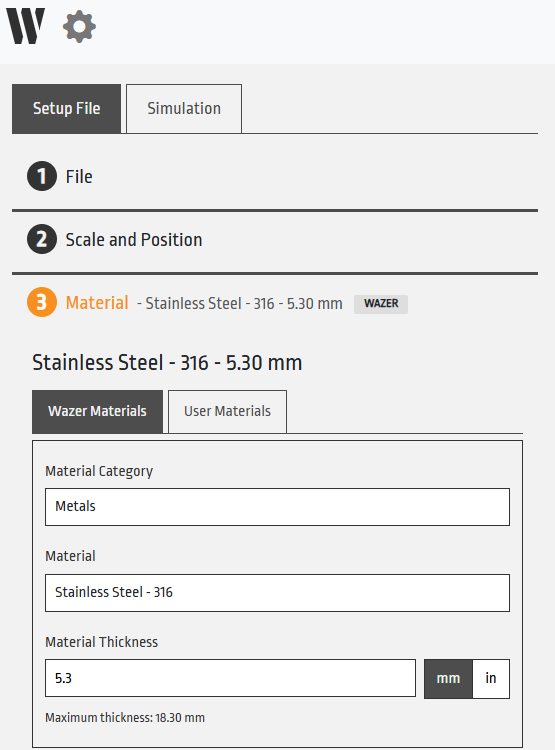
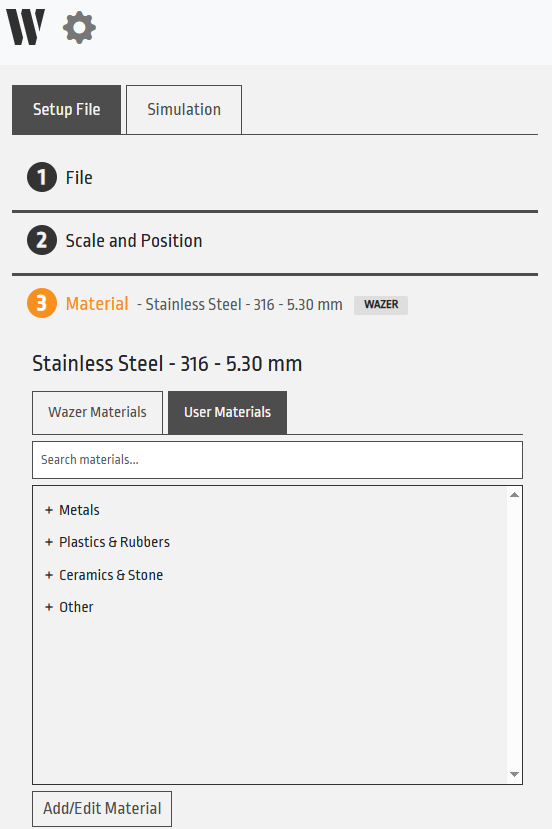
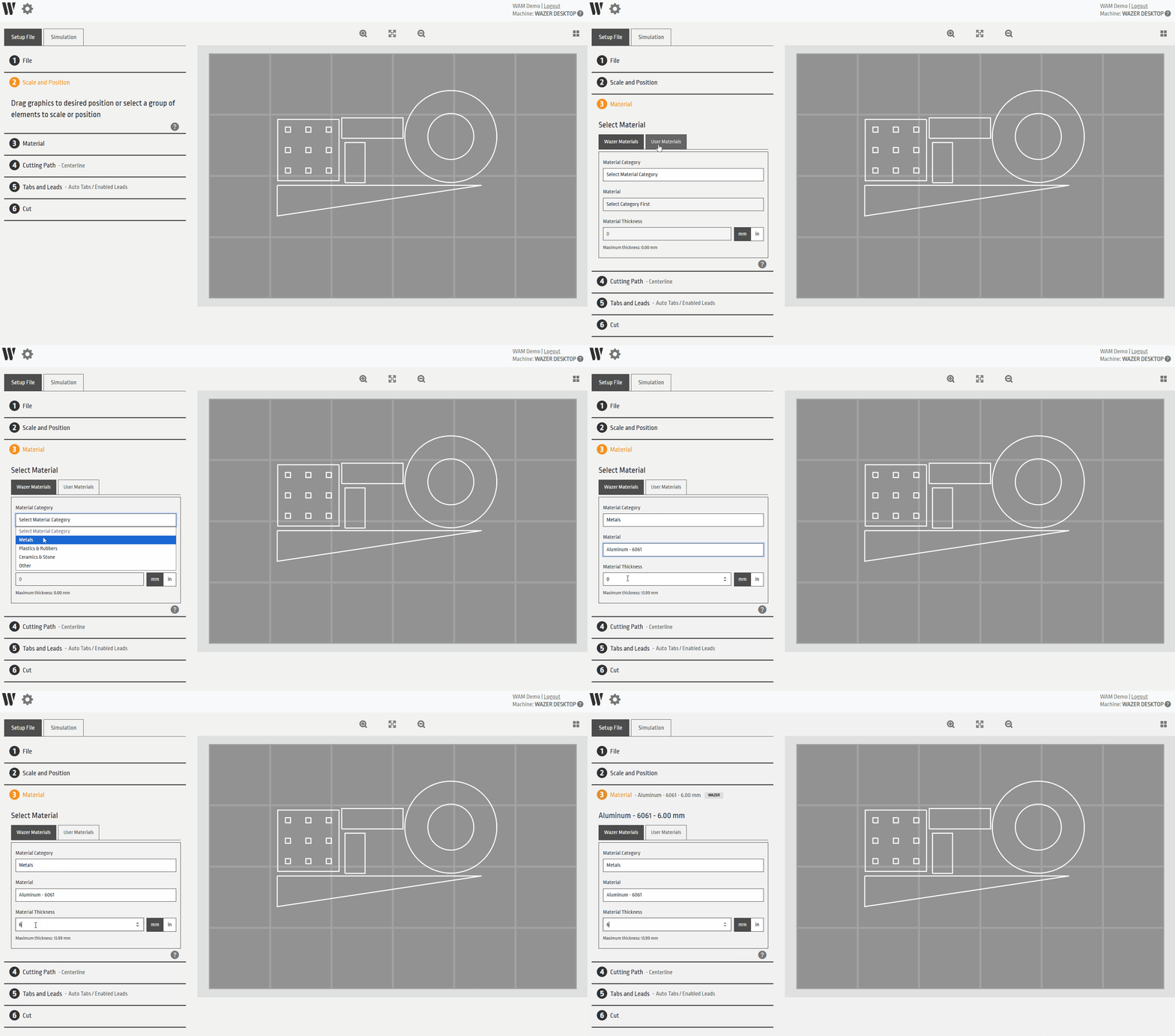
The WAZER material selection menu has been largely overhauled in WAM V2.2. It has been converted from a predefined set of discrete material thickness selections, to a menu where you type in the exact thickness of your material. No longer do you need to select the closest thickness that exists in our database or create your own material to fill in the gaps! Just select the material you are cutting and type in exactly the material thickness you have on hand. WAM will do the precise calculations for any thickness.
If you have custom materials saved to your database, these will still show up exactly as they have before, in discrete points. However, please note that all your custom materials will now exist in a subtab called “User Materials”. Adding or editing custom materials remains exactly the same as before.
Gcode Visualizer and Simulation
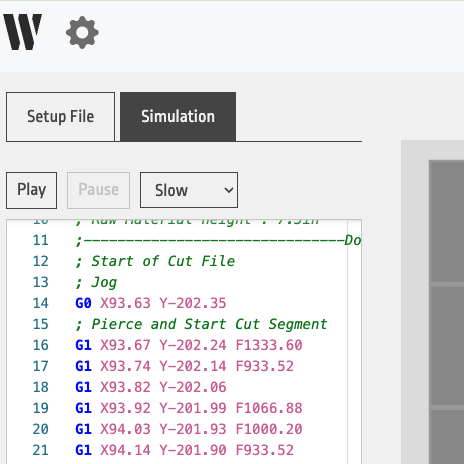
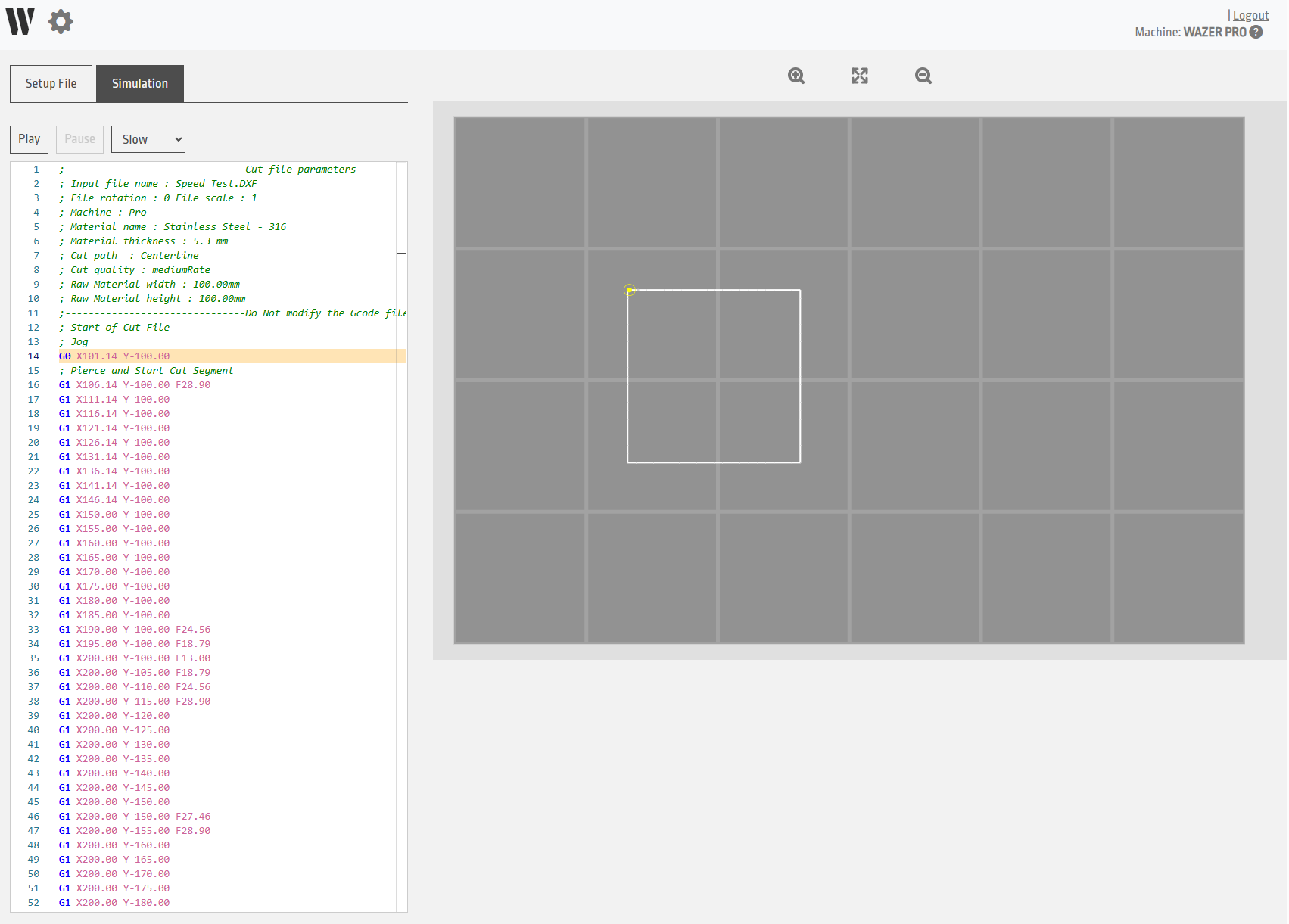
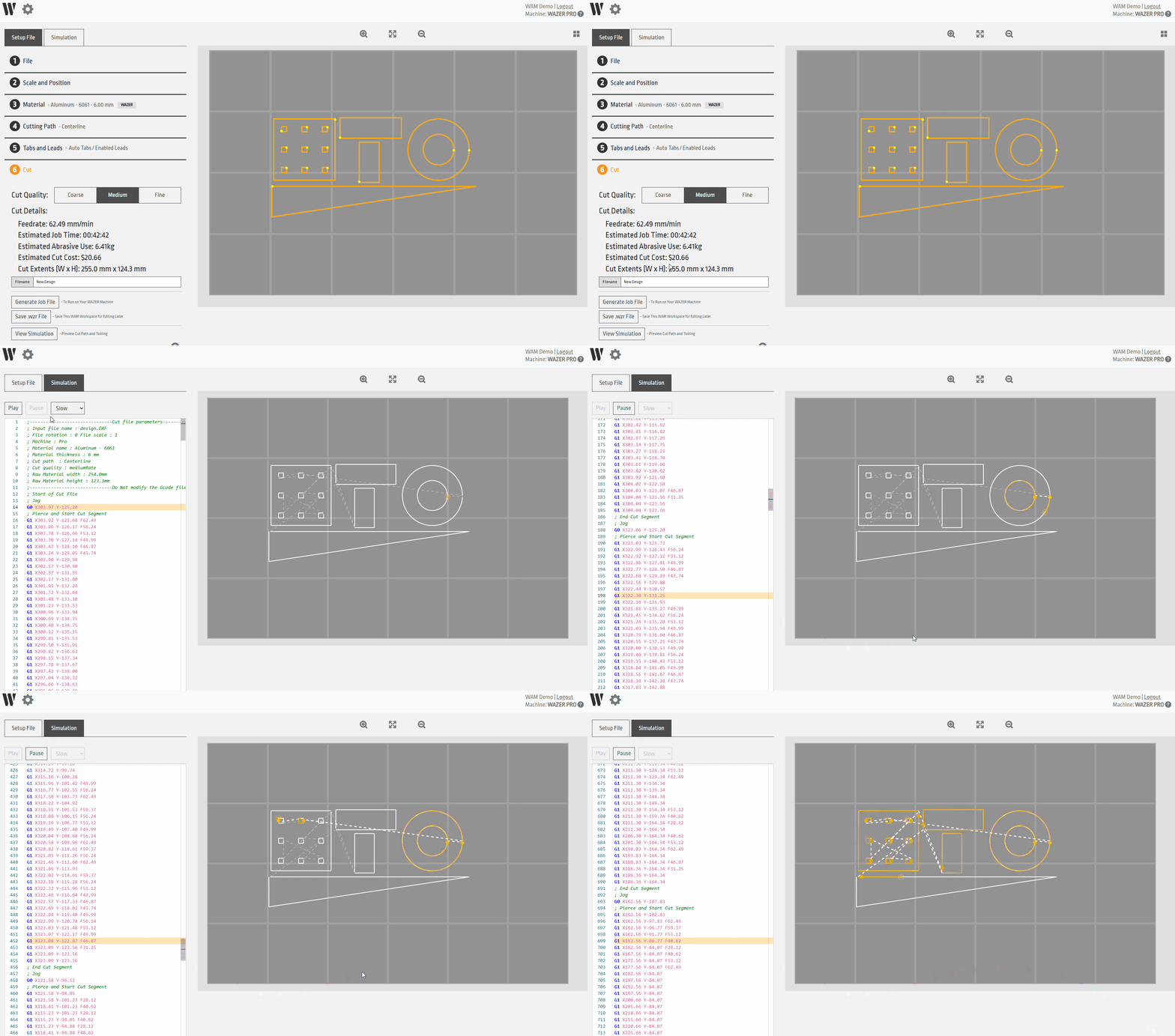
Another substantial change to WAM V2.2 is the addition of a “Simulation” sub menu. Upon finishing the setup of your cut, you may now go to this new menu that will allow you to view an abbreviated version of the gcode and also simulate the cutting path of the entire file. We suggest that you try this out before generating your gcode file for your WAZER, especially on more complex files. This sub menu is optional, so use it only if you feel comfortable.
Positioning Revamp
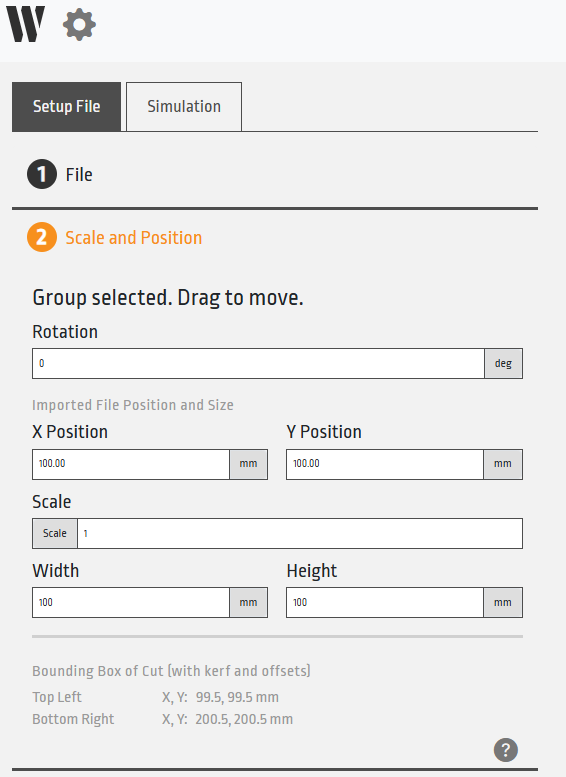
The positioning of your components has changed where the X and Y coordinates that are displayed or entered in the “Scale and Position” menu now refer to the position of the imported file and not the cutting path. In most cases this will not affect your workflow, however if you are cutting fixtures for accurate positioning later, this should make it easier and more intuitive for locating parts. Additionally, the “Bounding Box of Cut” is displayed at the bottom of this menu, which displays the overall cutting extents of the file path being cut including the kerf and any applied offsets.
WAM Workspace File Tweaks
The last WAM update brought you workspace files that you could save and import into WAM at a later date without needing to set up all the WAM prompts again. Since then we have heard suggestions for a few areas of improvement to this feature and have implemented them in this version of WAM V2.2. This list includes:
- Importing multiple WAM workspace files into one WAM session in conjunction with other .dxf or .svg files
- A revamped display of imported .wzr versus .svg or .dxf files so you know what files were imported in what ways
- Material properties are now saved within the WAM workspace file so even if you delete a custom material, your workspace file will retain the critical information
Please note that V2.1 WAM workspace files will work in WAM V2.2, however certain files may require you to reselect the material.