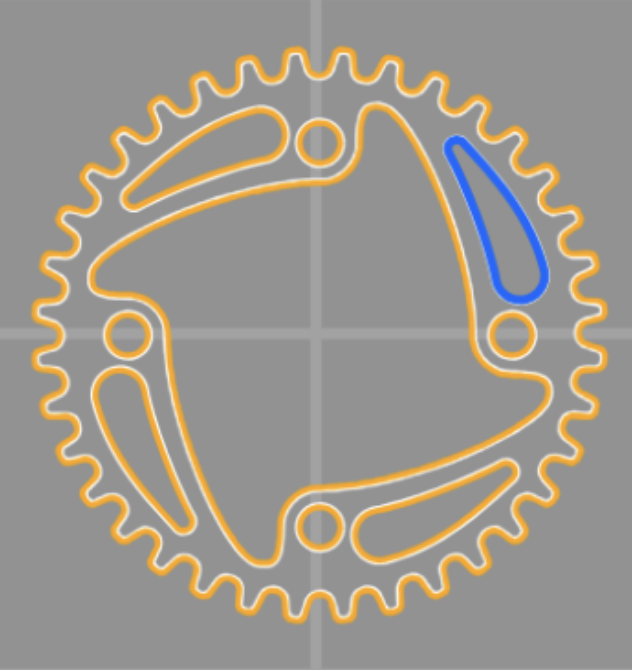
WAM V2.4 has arrived, introducing powerful new features including cutting order optimization, undo functionality, and scored tabs/lead-outs. To streamline your workflow, we have also implemented Google and Microsoft Single Sign-On (SSO) for a faster, more secure login experience.
Cutting Order Changes
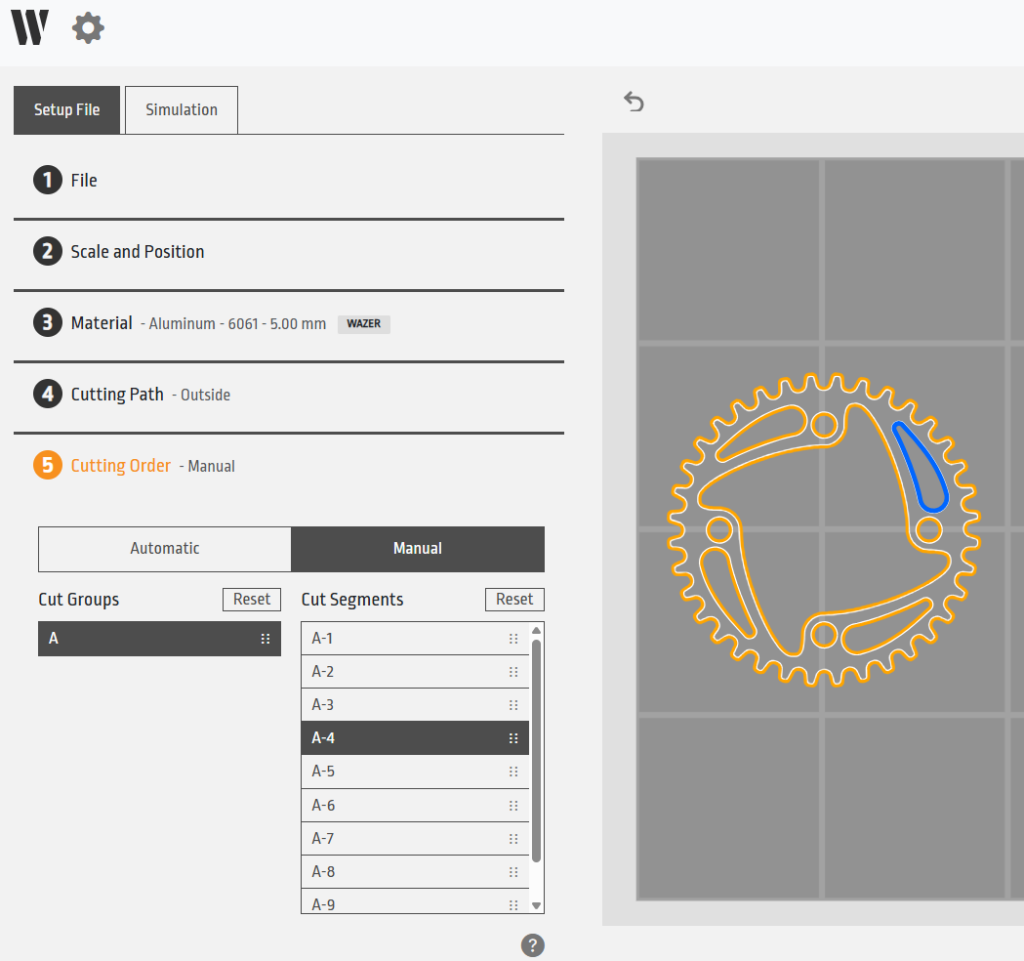
The new “Cutting Order” workflow item allows you to organize cut groups and segments with greater precision. The upgraded V2.4 algorithm attempts to automatically calculate the most efficient cutting sequence. Furthermore, you can now attain full reordering control via a manual override, allowing you to specify the exact order of each segment.
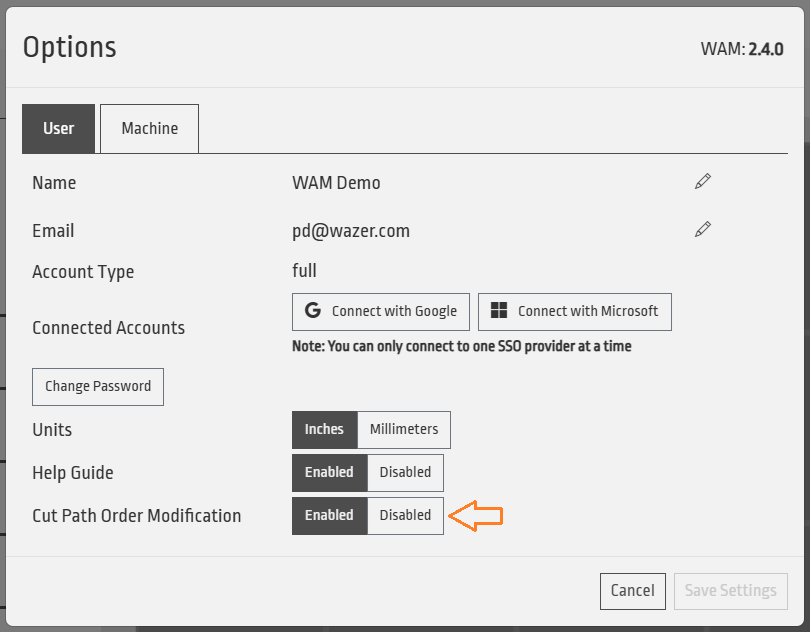
Note: If you prefer your existing workflow, you can easily disable this menu within your settings. It’s not required to maintain the quick in-and-out WAM workflow!
Undo Feature Functionality
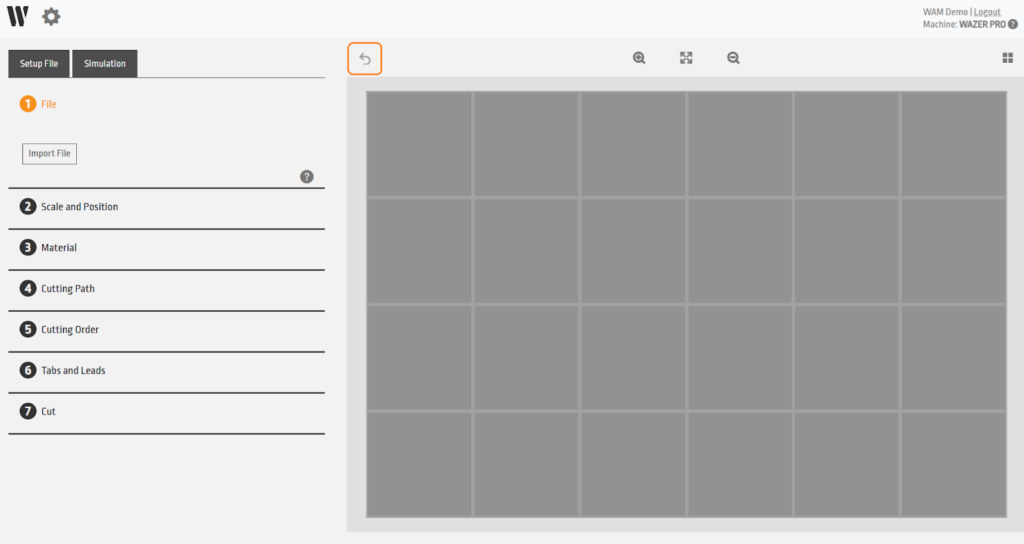
We have introduced an Undo feature to provide greater flexibility during the design process. Many common actions within the WAM workflow can now be reversed using the Ctrl+Z keyboard shortcut or the Undo button located at the top-left corner of the virtual cut bed.
Please note: While most actions are reversible, complex operations may require additional processing time to revert, and there may be a few that aren’t possible.

Scored Leadouts and Tabs
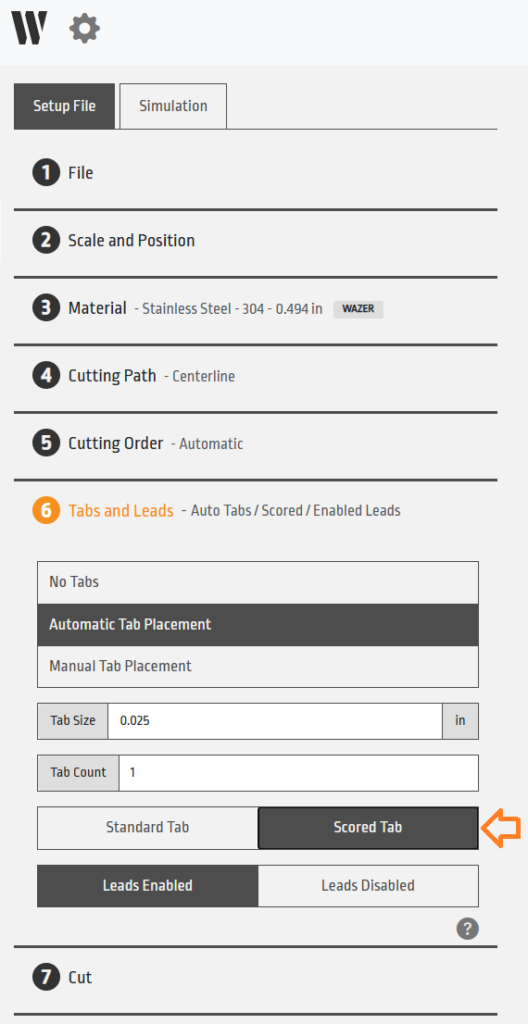
Enhance your post-processing efficiency with our new “Scored Tabs” feature found within the “Tabs and Leads” menu. This feature creates a partial cut (or “score”) on the top surface of the tab, allowing for a much cleaner break during de-tabbing.
Pro-tip: While scoring improves clean removal, always account for your specific material thickness and cut curvature to ensure optimal results.
Google and Microsoft SSO
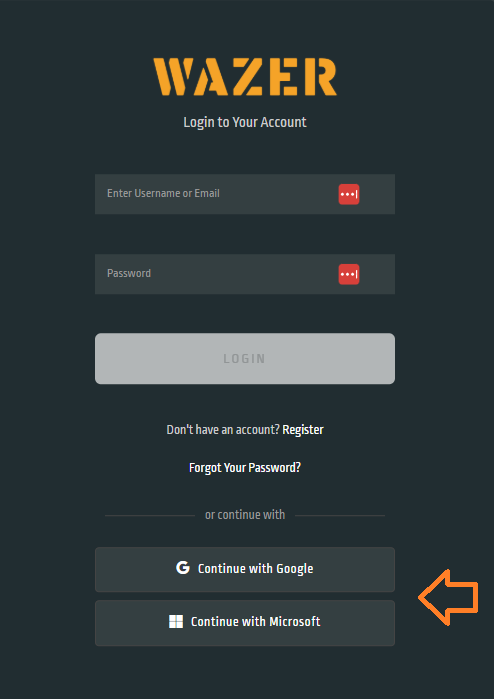
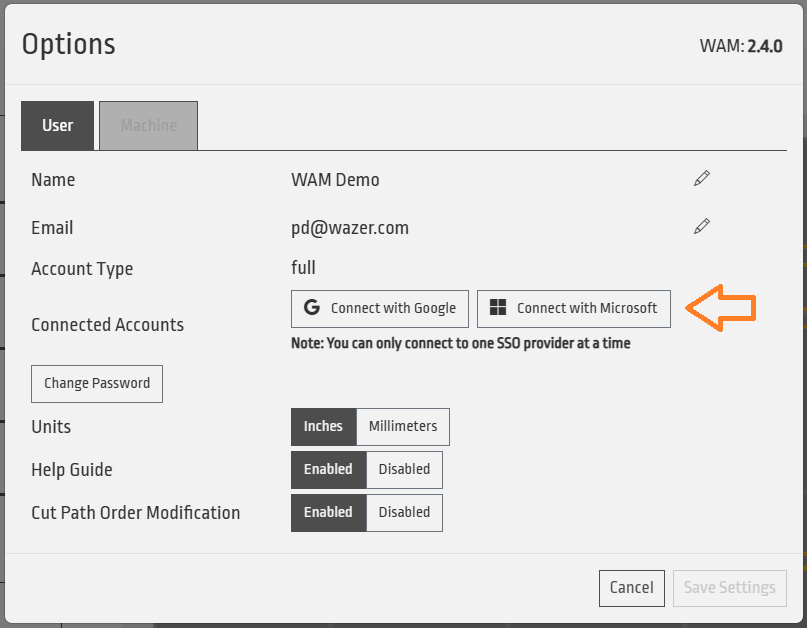
You can continue to log in using your existing credentials; however, you now have the option to link your WAM account to Google or Microsoft for seamless access.
To link your account:
- Via Login Page: Select “Continue with Google” or “Continue with Microsoft” on the initial login screen.
- Via Settings: Navigate to Settings > User > Connected Accounts within WAM.
Once you select a provider and verify your credentials, your account will be linked for future one-click logins. You may always unlink this via the WAM settings.