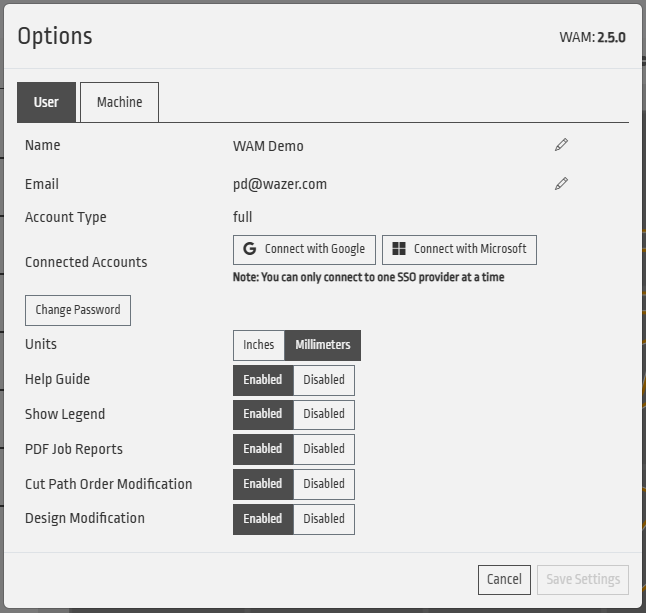
WAM V2.5 has arrived, bringing new tools that help you plan, adjust, and document your cuts without leaving WAM. You can now visualize your material stock on the cut bed to confirm your layout fits, make basic design modifications on the fly, and export a PDF summary of your job setup for your shop or makerspace records. WAM also gets smarter about your files, flagging problematic imports with guidance on how to fix them and better handling files with missing or incorrect units. Rounding things out are email verification, machine deletion, and fixes for several pesky bugs. And if you prefer a simpler workflow, every new feature can be turned off in settings.
Material Stock Visualization
If you have a particular material stock in hand and want to make sure your WAM layout fits within its bounds, you can now enter that material stock size into WAM and visualize it on your digital cut bed. This way you can be sure that your cut group placement within WAM will fit on the material you have to cut it with.
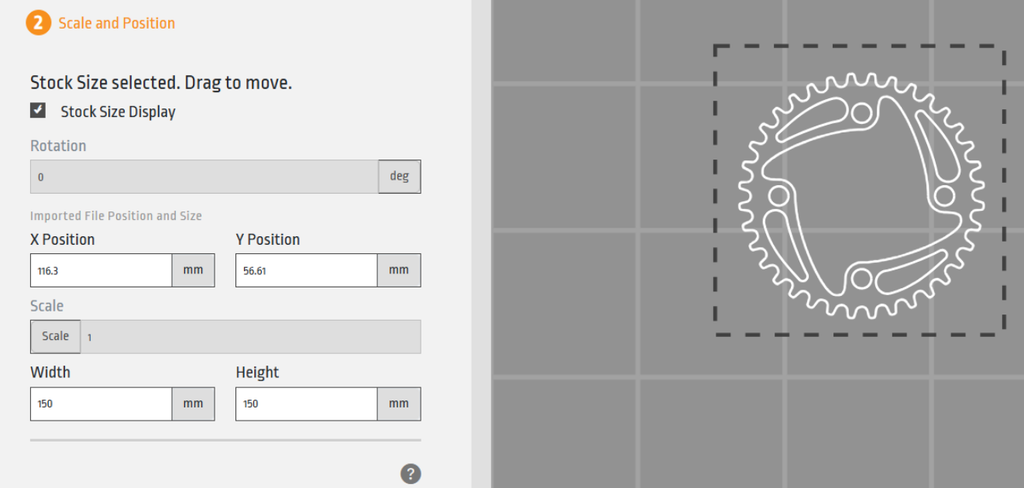
Enable Material Stock Visualization, then enter the size and determine a position for it on the cut bed
Design Modifications
Sometimes you need to make a basic design adjustment while preparing a cut in WAM. In V2.5, the new Design Modifications menu addresses two of the most common requests we’ve heard:
- Centroid Pierce Hole Creator: Select a cut profile to replace its cut path with a single pierce hole at its centroid. Use that hole to locate a drill for further machining or as a reference mark for another operation.
- No Cut Paths: Select a cut segment to exclude it from the generated G-code.
To distinguish these options, we’ve added new indicator colors for cut segments and groups. Check the color-coded legend at the top of the digital cut bed canvas to confirm that your cut plan matches your design intent.
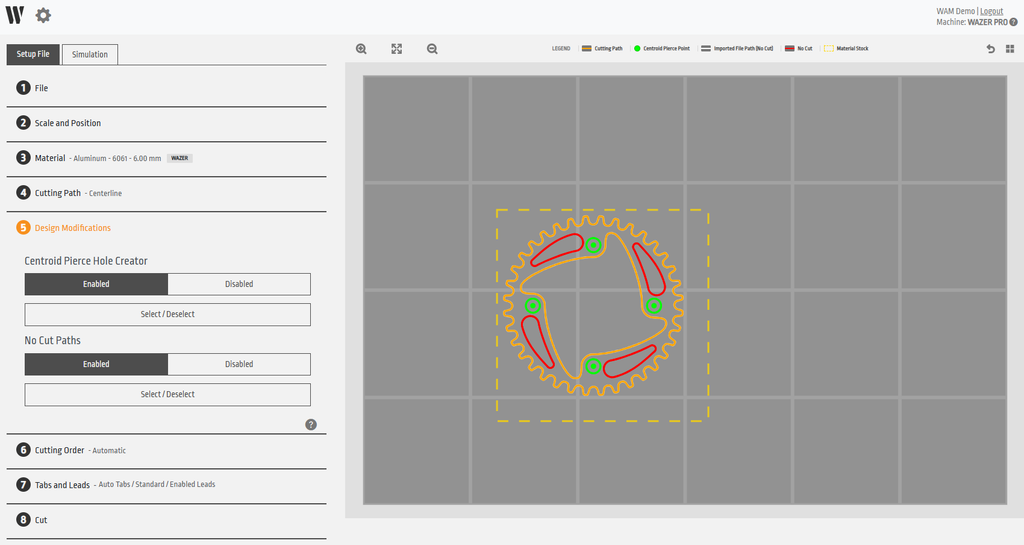
Design Modifications is a new menu that allows for centroid pierce holes and cut segments to not be cut
PDF Job Reports
With a single click, you can now generate a PDF report summarizing your WAM workspace setup and save it alongside your workspace or G-code file. Whether you’re working in a makerspace, job shop, or manufacturing facility, the report makes it easier to document and share your cut setup.
Thank you to everyone who suggested this feature—we hope it saves you time by putting the details you previously recorded manually into a ready-to-use report.
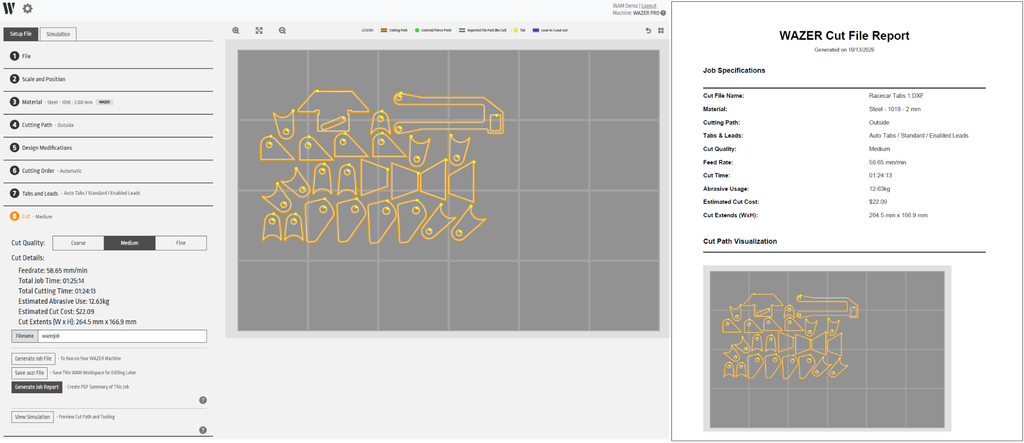
PDF Job Reports
Unsupported Import File Types
File types unsupported or potentially problematic to WAM are now evaluated upon import. If a potentially problematic file is flagged, WAM users will get advice on what is potentially wrong and how to modify their file export process to create a more compatible WAM file.
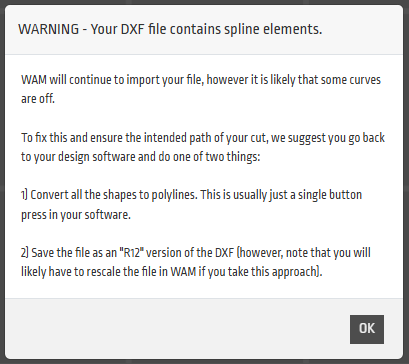
File Import Errors – Errors such as the above will now pop up to caution and advise you appropriately
Account Updates, Import Improvements & Bug Fixes
- Email Verification: All WAM accounts must use a valid, verified email address. If you haven’t verified yours yet, you’ll be prompted to do so in the coming days or when you next log in.
- Machine Deletion: You can now remove machines from your account through the Settings menu.
- Improved Import Scaling: WAM now makes it easier to adjust the scale of files imported without units or created using incorrect units, saving you a trip back to your design software.
- Bug Fixes:
- Drag-and-Drop Positioning: Cut groups and segments no longer occasionally jump or return to previous positions when dragged into overlapping locations.
- Resizing Rotated Groups: Width and height adjustments now correctly resize rotated cut groups.
- Material Library Loading: Material libraries now load correctly on your first login.
Customize Your WAM Workflow
Recent WAM releases have introduced more features and menus to give you greater control over your cut setup. We also know that many users value WAM’s simplicity and want to get from design to cutting as quickly as possible.
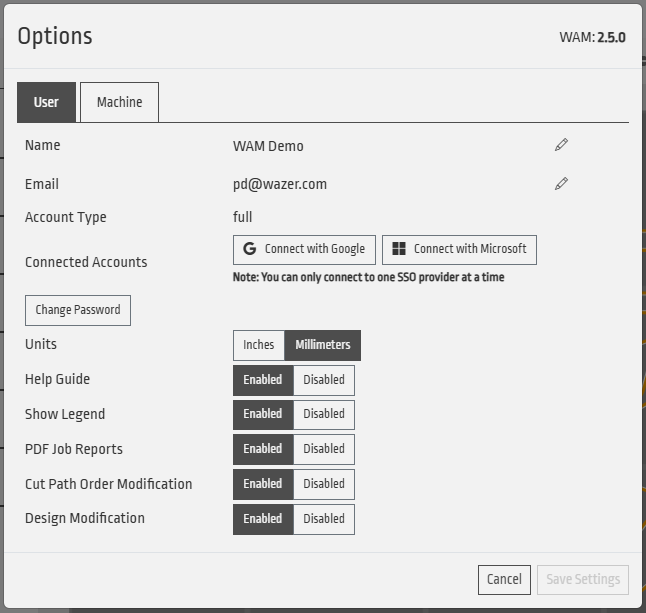
In Settings, you can turn optional features on or off to suit the way you work. Disable features you don’t need for a simpler workflow that feels familiar, or enable additional tools when you want more control. The choice is yours.